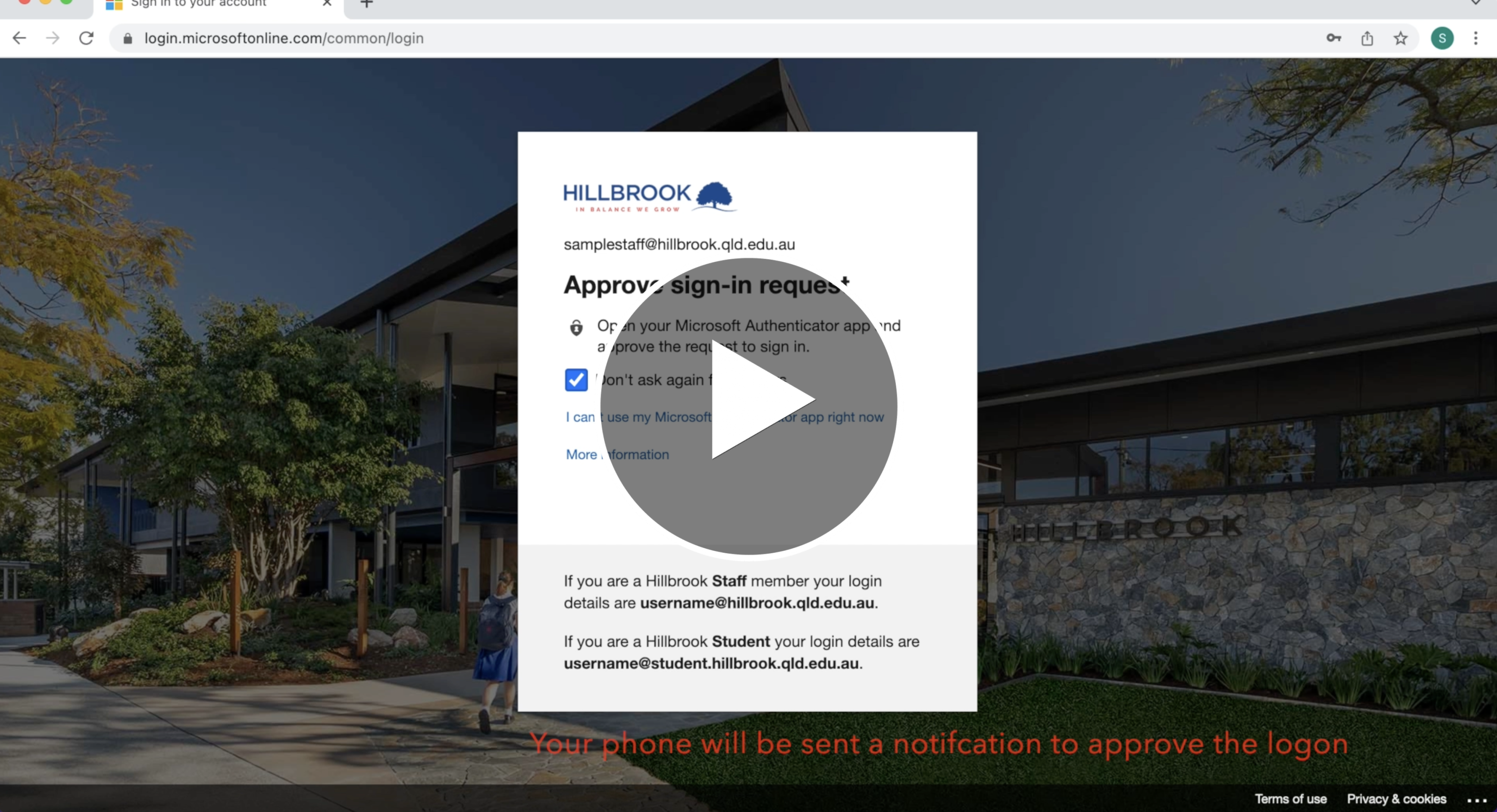
Hillbrook MFA Onboarding
Authenticator Setup
When you are next prompted to logon to office 365 you will be prompted for additional information.
Clicking “next” will start the setup of your Authenticator. You can skip this for 14 days, after which you must enrol.
You will need your mobile phone for this process.
To setup your Authenticator, you can use the Microsoft Authenticator Mobile app (recommended), or you can register your mobile number to receive the SMS codes as your authenticator.
We will show how to setup both types of authenticators in this guide.
Microsoft Authenticator App
Click "next" at the "More information required" screen.
- Select “Mobile App”
- Select “Receive Notifications for verification”
- Select “Set up”
- You will now have a QR Code displayed.
On your mobile phone, open the app store and search for “Microsoft Authenticator”
- Install the app and open it.
- Select “I agree” at the privacy info window.
- Select “Scan a QR code”
- Select “OK” to allow the App to access the Camera
- Read the QR Code on your Laptop’s screen with the Phone.
- Select “Allow” to let the Authenticator App send push notifications.
Back on your laptop
- Select “Next”
- Select “Next” again.
The system will now test the Authenticator.
On your mobile phone, you will receive a notification.
- Select the notification
- Select “Approve”
On your laptop
- Click finish.
Your Authenticator App is now setup.
SMS Code as an Authenticator
Click "next" at the "More information required" screen.
- Select “Authentication Phone” and then select “Australia” from the drop-down menus.
- Select “Send me a code by text message”
- Enter in your mobile phone number
- Select “Next”
On your phone
- You will be sent an SMS with a 6-digit code
- Retrieve the code from the SMS
On your laptop
- Enter the 6-digit code and click “Verify”
- Select “Finished”
Your SMS Code Authenticator is now setup.
Screen Recording - Setup
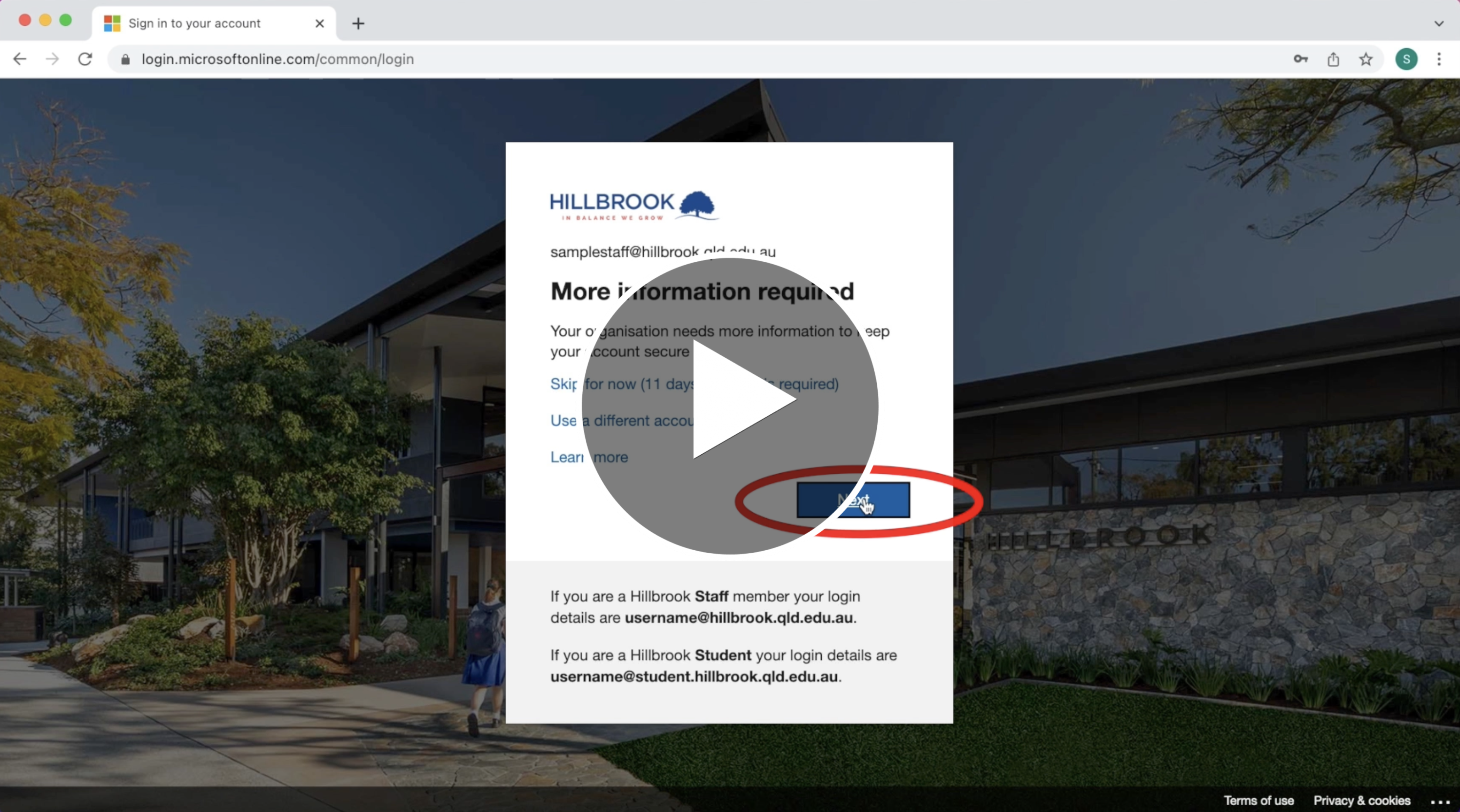
Screen Recording - MFA Logon Experience